
Self-hosting Ghost - SSH lag and broken Ghost assets

Here is how I fixed a sluggish VPS and bulletproof Nginx config for self-hosted Ghost.
Problem: Latency + Broken Assets
VPS latency made editing impossible. Simple commands took 3+ seconds; SSH dropped constantly despite good CPU/memory.
Ghost assets failed behind Nginx reverse proxy. Logos, favicons, admin CSS/images 404'd. Mixed HTTP/HTTPS content blocked everything.
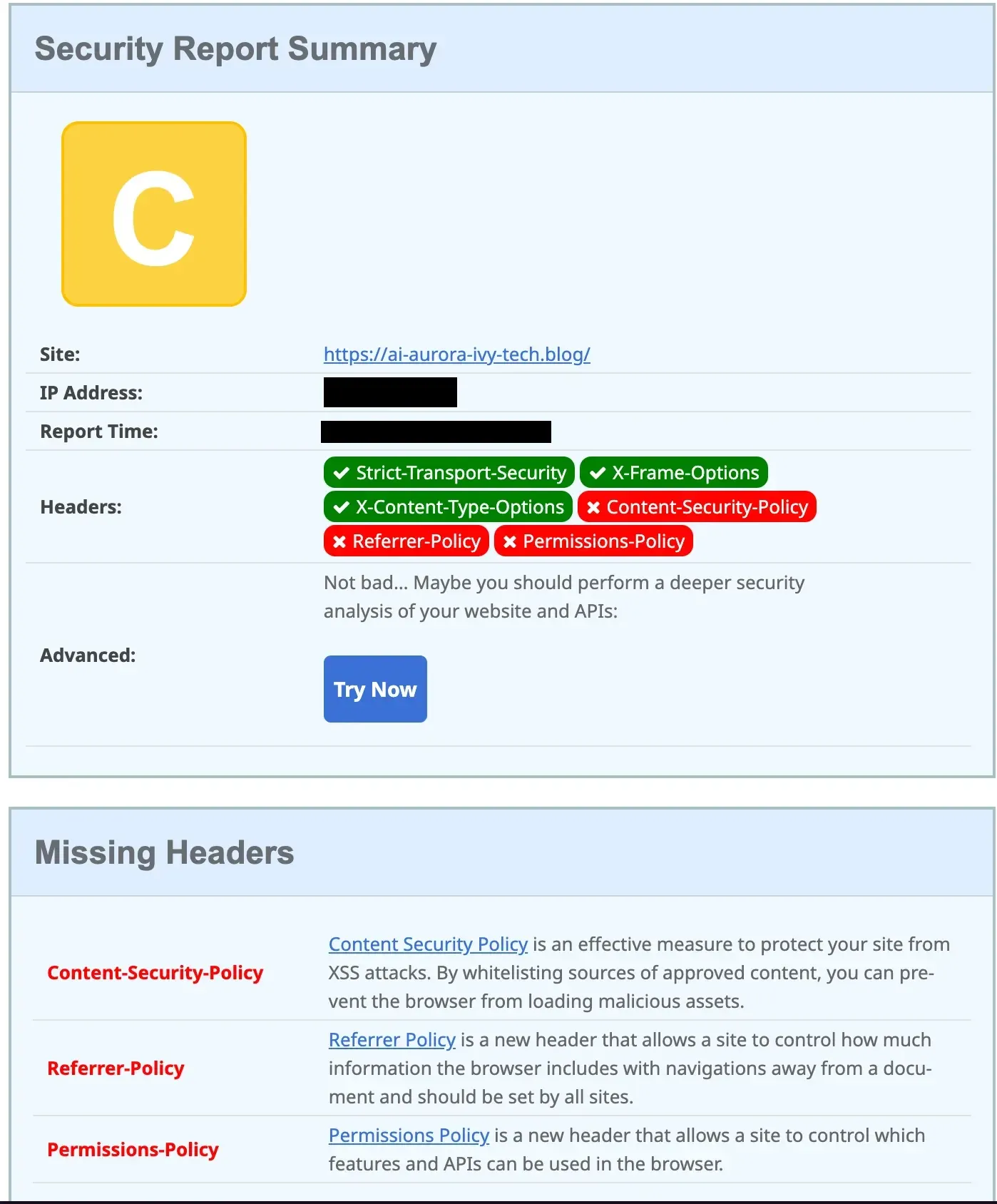
Securityheaders.com gave C-grade (67/100). Missing CSP, HSTS, proper redirects.
Solution: Mosh + Nginx
Mosh: Kill Latency with Mosh
SSL
Secure your Nginx reverse proxy with SSL/TLS to encrypt all traffic and protect credentials during remote sessions.
Why SSL first?
HTTPS prevents attackers from intercepting sensitive data like login credentials or API keys. Modern browsers mark HTTP sites as "Not Secure," hurting user trust and SEO rankings. SSL ensures end-to-end encryption between your client and server, preventing man-in-the-middle attacks common with tools like Mosh that tunnel over UDP. Use Let's Encrypt for free certificates via Certbot on Ubuntu.
Simple Setup with Let's Encrypt
Use Certbot for free, auto-renewing certificates that integrate directly with Nginx configs.
# 1 install certbot
sudo apt update && sudo apt install certbot python3-certbot-nginx

# 2 generate & auto-configure
sudo certbot --nginx -d yourdomain.com

# 3 Nginx now listens on port 443
# ssl_certificate and ssl_certificate_key directives are added automatically

# 4 test
curl -I https://yourdomain.com
This creates a secure HTTPS endpoint that Mosh will proxy through safely.
# via ssl
ssh -p 22 <user_name>@<vps_ip>
Mosh
Mosh improves on SSH by supporting intermittent connections and predicting keystrokes, making it ideal for unstable networks.
Here is how to install and configure it:
# 1 install on VPS (Ubuntu)
sudo apt install mosh

# 2 install on local machine (macOS)
brew install mosh

# 3 permanent alias
# add to ~/.ssh/config
Host vps
    HostName <vps_ip>
    Port 22
    User <user_name>
    TCPKeepAlive no
    ServerAliveInterval 60

# 4 via mosh
mosh <user_name>@vps
Result: Responsive shell even on 300ms+ latency. No more frozen typing sessions.
Bulletproof Nginx Config
# HTTP → HTTPS redirect
server {
    listen 80;
    listen [::]:80;
    server_name <your_domain> www.<your_domain>;
    return 301 https://$host$request_uri;
}

# HTTPS main - A+ SECURITY
server {
    listen 443 ssl http2;
    listen [::]:443 ssl http2;
    server_name <your_domain> www.<your_domain>;

    # SSL
    ssl_certificate /etc/letsencrypt/live/<your_domain>/fullchain.pem;
    ssl_certificate_key /etc/letsencrypt/live/<your_domain>/privkey.pem;
    include /etc/letsencrypt/options-ssl-nginx.conf;
    ssl_dhparam /etc/letsencrypt/ssl-dhparams.pem;

    # ALL SECURITY HEADERS (single instances, Ghost-safe CSP)
    add_header Strict-Transport-Security "max-age=31536000; includeSubDomains; preload" always;
    add_header X-Frame-Options "SAMEORIGIN" always;
    add_header X-Content-Type-Options "nosniff" always;
    add_header X-XSS-Protection "1; mode=block" always;
    add_header Referrer-Policy "strict-origin-when-cross-origin" always;
    add_header Permissions-Policy "geolocation=(), microphone=(), camera=(), fullscreen=(self)" always;
    add_header Content-Security-Policy "default-src 'self'; script-src 'self' 'unsafe-inline' 'unsafe-eval'; style-src 'self' 'unsafe-inline'; img-src 'self' data: https: blob:; font-src 'self' data: https:; connect-src 'self' https: wss:;" always;

    # Content images
    location ^~ /content/ {
        proxy_pass http://127.0.0.1:2368;
        proxy_set_header Host $host;
        proxy_set_header X-Real-IP $remote_addr;
        proxy_set_header X-Forwarded-For $proxy_add_x_forwarded_for;
        proxy_set_header X-Forwarded-Proto $scheme;
        proxy_cache off;
        expires 1y;
        add_header Cache-Control "public, immutable";
        access_log off;
    }

    # Main Ghost proxy
    location / {
        proxy_pass http://127.0.0.1:2368;
        proxy_set_header Host $host;
        proxy_set_header X-Real-IP $remote_addr;
        proxy_set_header X-Forwarded-For $proxy_add_x_forwarded_for;
        proxy_set_header X-Forwarded-Proto $scheme;
        proxy_set_header X-Forwarded-Host $host;
        proxy_http_version 1.1;
        proxy_set_header Upgrade $http_upgrade;
        proxy_set_header Connection "upgrade";
        proxy_cache_bypass $http_upgrade;
        proxy_buffering on;
        proxy_buffer_size 128k;
        proxy_buffers 4 256k;
        proxy_busy_buffers_size 256k;
        client_max_body_size 50M;
    }

    # Static assets
    location ~* \.(png|jpg|jpeg|gif|webp|ico|svg)$ {
        proxy_pass http://127.0.0.1:2368;
        proxy_cache off;
        expires 1y;
        add_header Cache-Control "public, immutable";
        access_log off;
    }

    # ActivityPub
    location ~ ^/\\.ghost/activitypub/ {
        proxy_pass https://ap.ghost.org;
        proxy_set_header Host ap.ghost.org;
        proxy_set_header X-Real-IP $remote_addr;
        proxy_set_header X-Forwarded-For $proxy_add_x_forwarded_for;
        proxy_set_header X-Forwarded-Proto $scheme;
        proxy_ssl_server_name on;
    }

    # WebFinger/NodeInfo
    location ~ ^/\\.well-known/(webfinger|nodeinfo) {
        proxy_pass https://ap.ghost.org;
        proxy_set_header Host ap.ghost.org;
        proxy_set_header X-Real-IP $remote_addr;
        proxy_set_header X-Forwarded-For $proxy_add_x_forwarded_for;
        proxy_set_header X-Forwarded-Proto $scheme;
        proxy_ssl_server_name on;
    }
}
Test and reload:
sudo nginx -t
sudo systemctl reload nginx
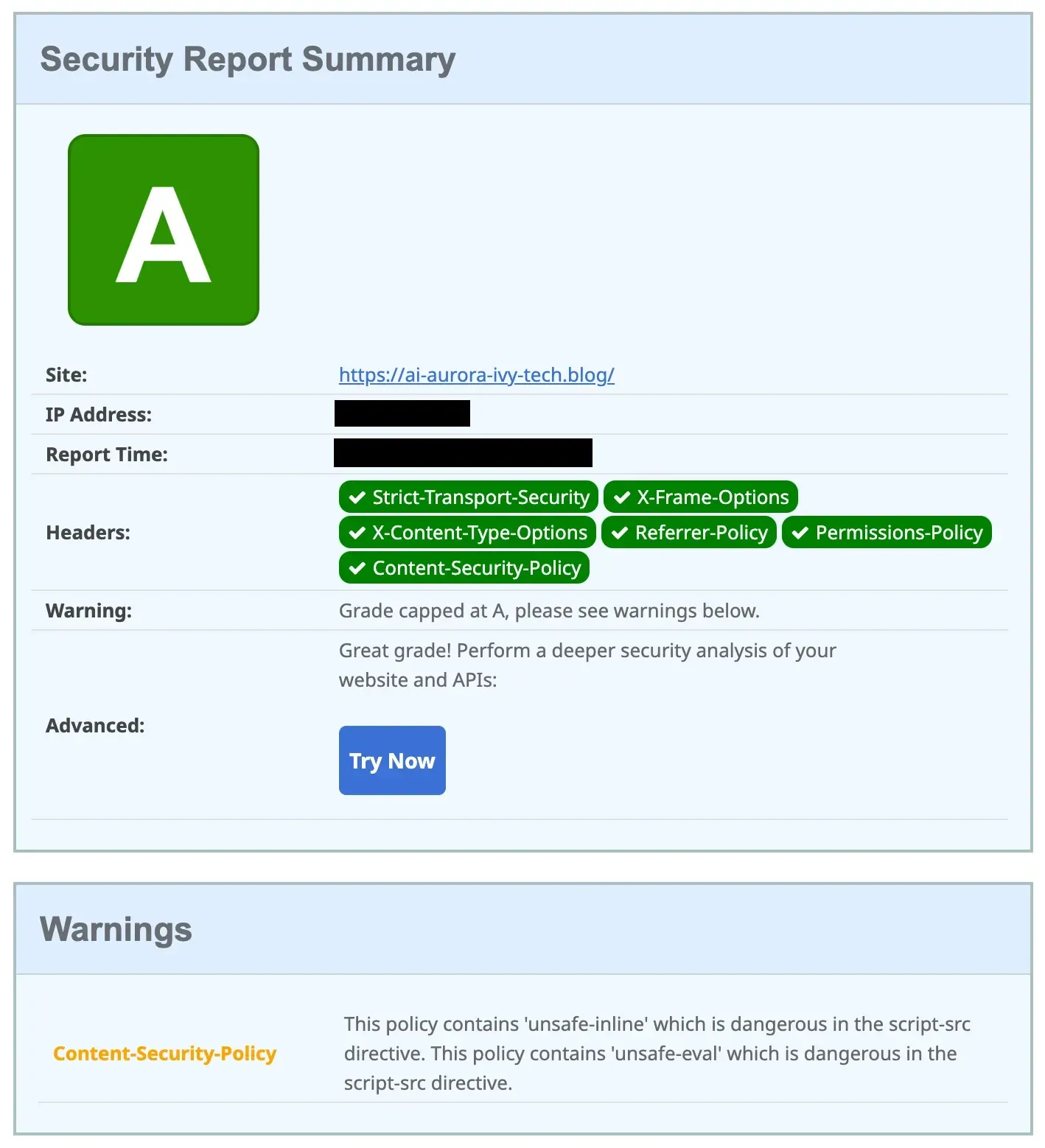
After hardening Securityheaders.com gives an A-grade result.
Your turn
- Install Mosh for lag-free editing
- Use Nginx config
- Test with
nginx -t - Check A+ at securityheaders.com